 Talon
TalonTalon field guide
Ask about the chart or map you have open and get a short, sourced read of the options structure, flow and news. Find the levels that matter faster. The call stays yours.


Why it matters
Reading an options map takes time, and the question you have is usually simple: where does this stall, and what has to break for it to run? Talon is the AI analyst built into Skylit. You ask in plain English, or with a slash command, from any page. It answers from live Skylit data and the Skylit Academy. That data covers the Heatseeker gamma (GEX) and vanna (VEX) map, options flow, dark pool prints (large trades done off the public exchanges), company events and news.
How it differs from a general chatbot:
- It sees your page. The page you are on and the ticker in focus go with every message. On an NVDA chart, "what are the levels?" is a complete question.
- Numbers come from Skylit data, not from memory. Levels, strikes, expiries, dates and prices are meant to come from a live read. Still check any level before you act on it (see Good to know).
- It does not make the call. Talon lays out the structure: the levels it points to, the price that would prove the idea wrong, and the risk-to-reward between them. It will not tell you to buy, hold, exit or how much to size, even if you ask for those fields in a template.
Where to find it
Talon is the same everywhere: one conversation, one history, one set of settings. Move between these places mid-thought and nothing is lost.
| You want | Go to |
|---|---|
| Talon beside any page | Press Cmd + \ (Mac) or Ctrl + \ (Windows). Or tap the round Aegis button (a robot icon) to open the side panel, then the Talon tab. |
| Talon full screen, with a live chart and market tape | TALON in the sidebar (or the phone module picker), or go to /talon. Pro plan. |
| Past conversations | History in the Talon toolbar. On a phone, the History control on the full page. |
| Timeframe, effort, watchlist | The row under the message box (the composer). |
| Prose or Concise answers, follow-up chips | The settings button in that same row, Answers tab. Or type /concise and /suggest. |
| Learn Talon step by step | Academy: Talon Prompt Guide, then The Core Reads, Trading the Index and Futures, Trading Single Names, Finding Setups, Building the Trade, and Talon: The Full Page. |
| Report a bad answer | Thumbs-down on the answer. Include the exact question, the page, the timeframe and what you expected. |
On desktop the Aegis button sits bottom right, above the Support button. On a phone it sits on the right edge, around the middle. You can drag it somewhere else.
Which plans include Talon
| Plan | What you get |
|---|---|
| Pro | The Talon tab in the Aegis panel, every slash command, page reads, scans, flow, company and research answers, plus the full page at /talon and the TALON entry in the sidebar and phone module picker. |
| Community, Initiate and free accounts | The Talon tab does not appear. |
The first time you open Talon, you accept a short disclaimer. It says Talon is educational and not financial advice, it can be wrong, and every trading decision is yours. It shows again whenever that text changes. If you decline, Talon closes and asks again next time.
Read it in 30 seconds
- Open it. Press
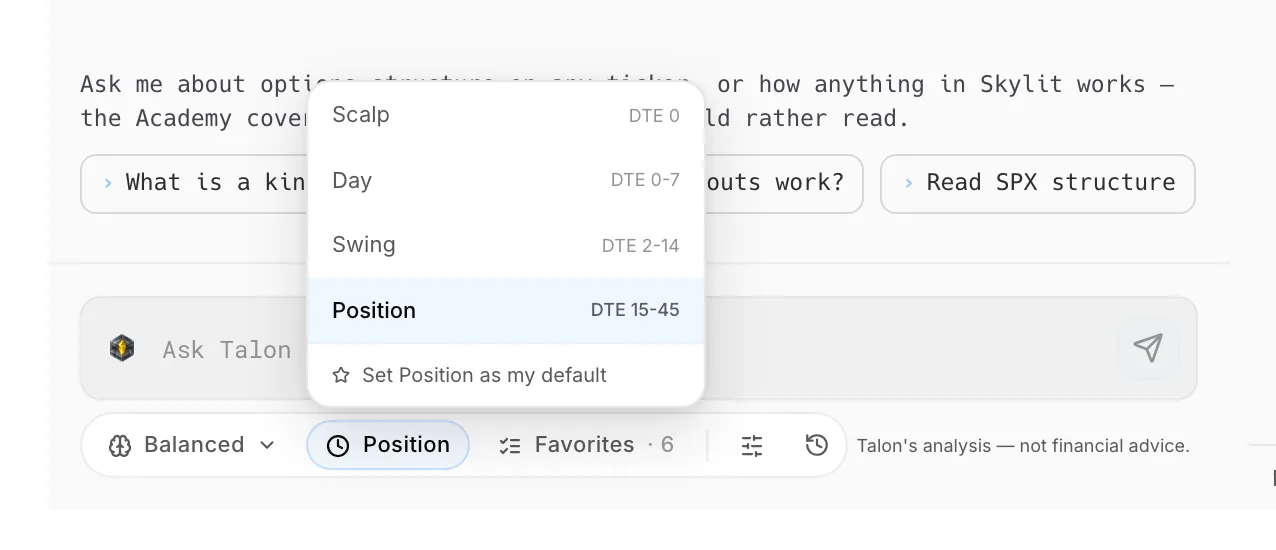
Cmd+\(Mac) orCtrl+\(Windows), or tap the round Aegis button and pick Talon. - Set the timeframe. Pick Scalp, Day, Swing or Position under the composer. It decides which expirations Talon reads, so a scalp read and a position read of the same ticker can rightly disagree.
- Ask a pointed question. "Where does this turn?" or "what has to break for this to run?" gets more than "give me the levels".
- Name the expiry on any strike question. Ask whether the trade was bought or sold, not how big it was: "Is 600 being bought or sold for the Oct 17 expiry?"
- Push back. If a number looks wrong, say so. Talon fetches the data again and shows its source instead of defending its last answer.
How to use it
Set the timeframe and effort
Why: the same ticker has a different map for a 0DTE scalp (options that expire today) than for a three-month hold. Matching Talon to your holding period keeps the read relevant.
Where: the row under the composer.
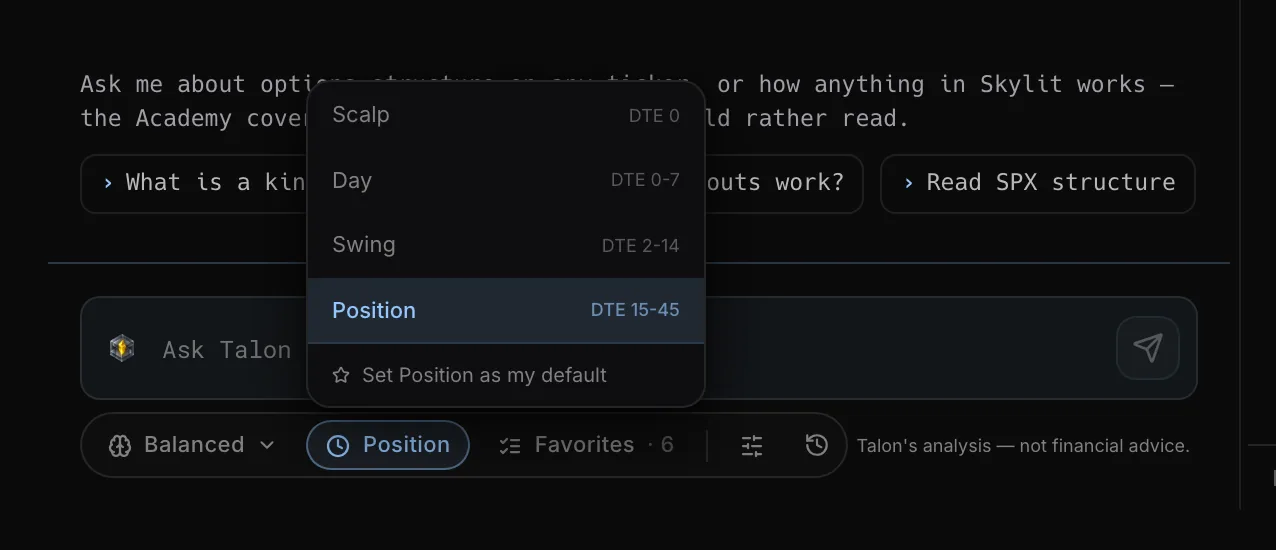
- Tap the timeframe control and pick Scalp, Day, Swing or Position. The menu shows the days-to-expiry range each one reads. You can set one as your default; it is marked in the menu.
- Tap the effort control and pick Fast, Balanced or Deep.
- If you scan watchlists, tap the watchlist chip and pick the Atlas list a plain
/watchlistshould use.
| Effort | What the app says | When to use it |
|---|---|---|
| Fast | "Quickest replies, lighter reasoning" | Quick lookups. |
| Balanced | "Default. Full depth at chat speed" | Most questions. |
| Deep | "Hardest reads. Slower, more headroom" (marked $$$) | Questions that chain several reads: confluence (several levels lining up), a full trade map, a rotation scan. The Academy suggests Deep for these. |
Choose how answers look
Why: sometimes you want the reasoning, sometimes you want to compare ten names at a glance.
Where: the settings button in the composer row, Answers tab.
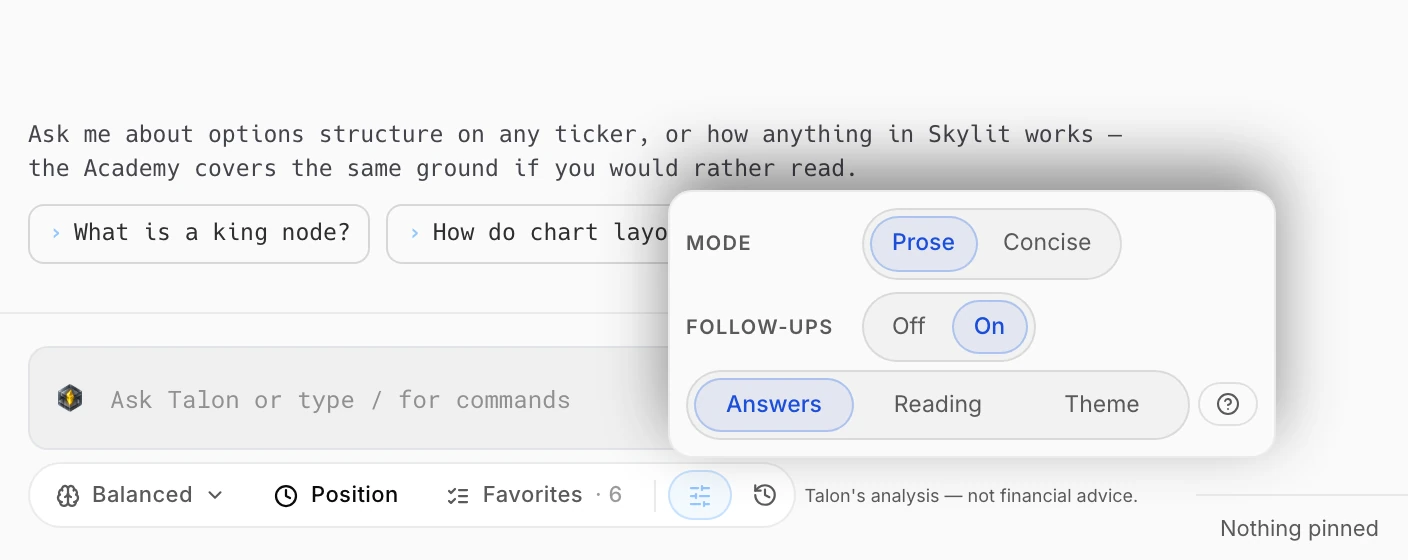
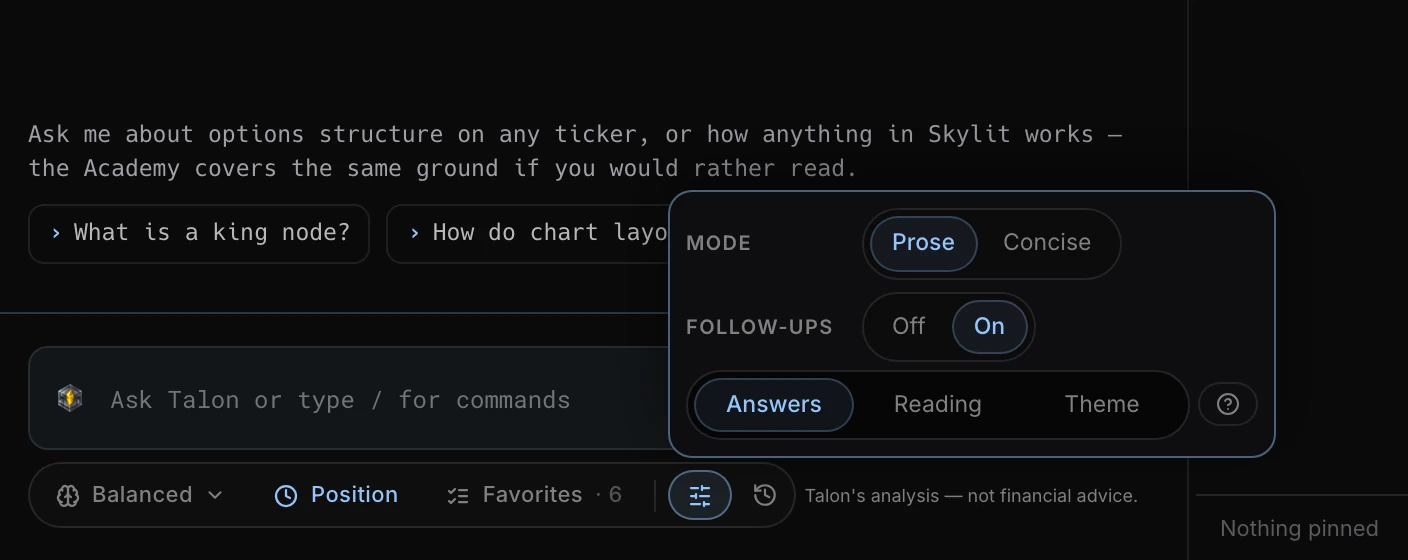
- Under Mode, pick Prose (the default) to get the read in a few tight sentences, or Concise for the same read in short field blocks. Concise is better for comparing names and worse when you want the reasoning.
/conciseswitches it from the composer. - Under Follow-ups, turn the three suggested next questions under each answer on or off. They are on by default.
/suggestswitches them.
You can type your next question while Talon is still answering. Up to three questions wait in a queue and go out in order as each answer finishes.
Slash commands
Why: a command gets you exactly one read, with no guessing about what you meant.
Where: type / in the composer to open the menu.
- Type
/and start typing the command name. The closest matches come first. - Pick the command, then add a ticker or scope if it takes one.
- Press Enter. Picking the last option in a command runs it straight away.
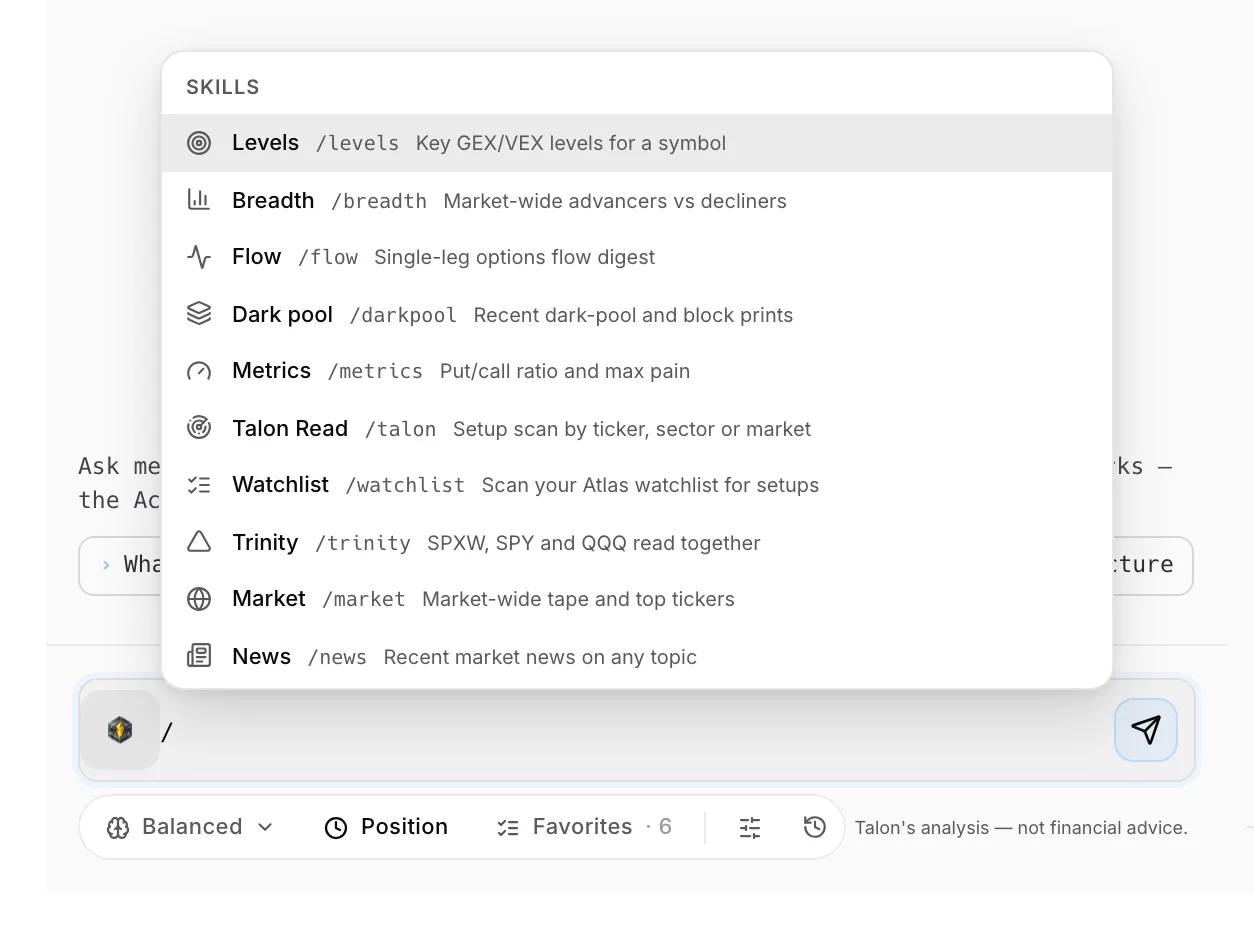
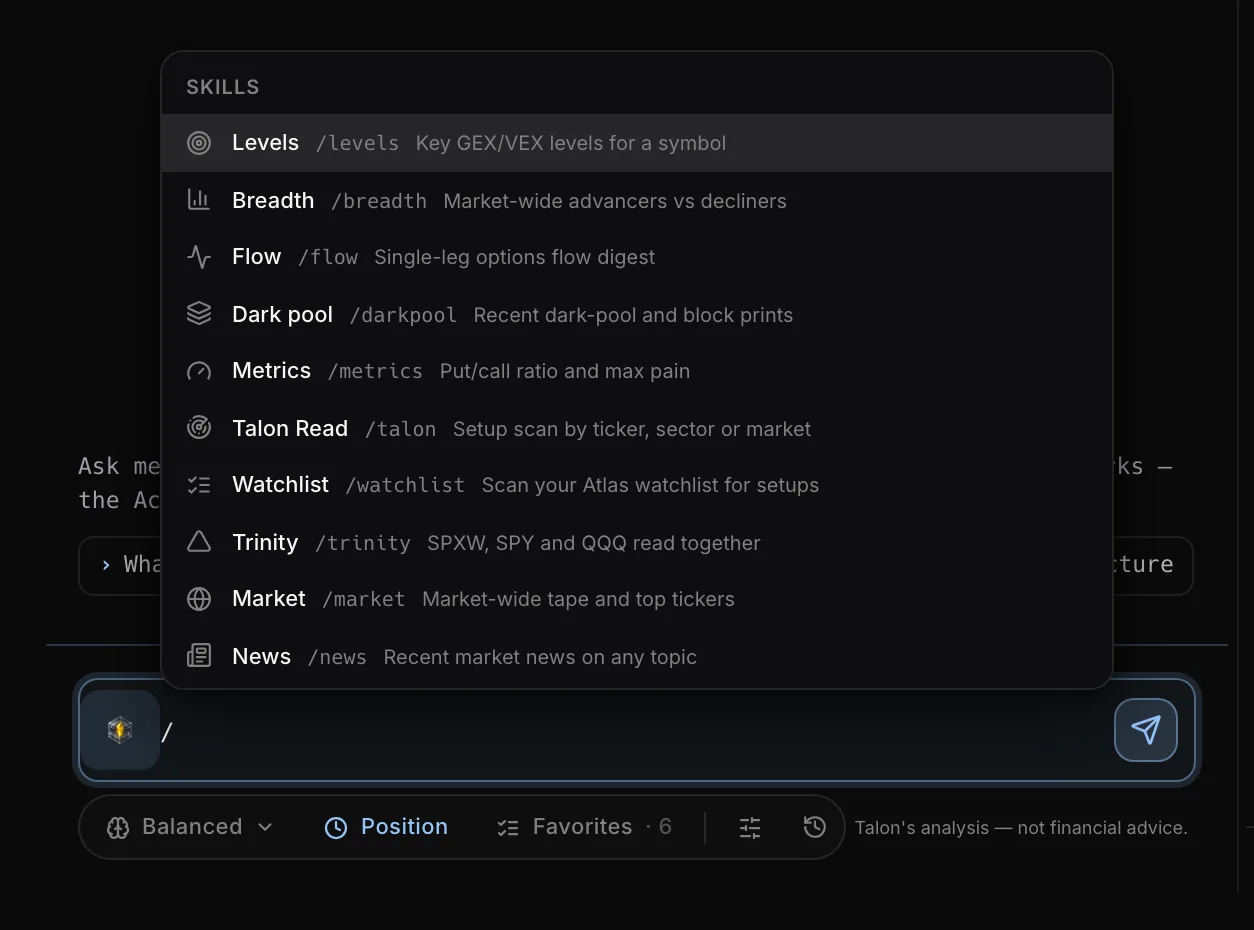
Most commands behave like ordinary questions, so "what's the flow in NVDA?" gets the same answer as /flow NVDA. /watchlist, /trinity and /talon TICKER always run the same fixed read, so type those when you want exactly that read.
| Command | What you get |
|---|---|
/levels [TICKER] | The key GEX/VEX levels, each labeled with its instrument. A ticker you type beats the page. |
/talon [TICKER] (Talon Read) | A structure read on one name: the trade map with its reference levels, invalidation and risk-to-reward. |
/talon sector NAME · theme NAME · market · universe | The same scan across a group of names. The lists are below the table. |
/watchlist [LIST] | Scans one of your Atlas watchlists. With no name it uses Favorites, or your first saved list. |
/trinity | SPXW, SPY and QQQ read together, and whether they agree. |
/breadth | Advancers vs decliners across the S&P 500 and Nasdaq 100. |
/flow [TICKER] | Today's single-leg flow (one contract traded on its own, not part of a spread), how today compares with the week, and the premium leaders with their buy/sell split. |
/darkpool [TICKER] | Off-exchange block prints over the last five sessions. |
/metrics [TICKER] | Put/call ratio and max pain (the strike where the most option value would expire worthless). |
/earnings [TICKER] | Next and most recent earnings dates. |
/market | Market-wide tape and top tickers. |
/news TOPIC | Up to five recent articles, each with publisher and time. Takes free text, not a ticker. |
/clear · /help · /concise · /suggest | Start fresh, list commands, switch Concise, switch follow-up chips. |
What you can scan with /talon:
- Sectors: semiconductors ("semis" works), energy, financials, healthcare, consumer, industrials, cybersecurity, crypto.
- Themes: mag7, ai, china, memory, ev, datacenters, neoclouds, hyperscalers, defense, nuclear, quantum, robotics, space.
market: the index, ETF and volatility group.universe: the whole market. You can narrow it to stocks or ETFs.
Find stacked kings
Why: when a name's biggest gamma node and its biggest vanna node sit on the same strike and expiry, that one level carries both kinds of dealer exposure at once. Stacked kings find those levels across a whole list in one ask, instead of checking names one at a time.
Where: ask Talon in plain words, from any page. There is no command to remember.
- Ask for them: "stacked kings across the market", "stacked kings in my favorites", "stacked kings in semis", or "which of NVDA, AMD and PLTR have their kings on the same strike?".
- Narrow by sign if you like: "both positive", "both negative", or "one positive, one negative" (a split stack).
- Slice further with any phrase from the table below. They combine, so "big stacks near spot, closest first" works.
- Read the card. Tap a ticker to open its trade map, or use the suggested follow-ups to flip the sign or switch between your favorites and the whole market.
| You say | What you get |
|---|---|
| "at least $10M" · "big stacks only" | Only stacks where both kings are at least that size. |
| "top 10%" · "top 1%" | Only the biggest stacks among everything that was scanned. |
| "within 5% of spot" · "near spot" | Only nodes close to the current price. |
| "above spot" · "below spot" | Only nodes on that side of price. |
| "firm only" | Leaves out kings that could move between reads (see below). |
| "closest first" · "firmest first" | Sorts by distance from price or by how firm the kings are, instead of by size. |
| "top 10" | Shows that many rows. Every match is still counted. |
| "same strike, any expiry" · "summed across expiries" | Matches the strike across expirations, or uses each strike's total exposure, instead of one exact node. |
| "show all" | Includes the small stacks that are hidden by default. |
How to read the card:
- Stack says Positive (both kings positive), Negative (both negative) or Split (opposite signs). Node and Expiry show where they sit; every node is dated. GEX and VEX are each king's exposure.
- Detailed adds Size (where the stack ranks among every stack in what you scanned; Top 1% is the biggest), Lead (how far each king is ahead of the next-biggest node) and Runner-up (the node that would take over).
- A line under the table names any contested king: one that leads its runner-up by less than 10%. Those can move to the runner-up between reads, so an answer a few minutes later can differ. That means the king moved, not that the first answer was wrong.
- By default a stack only counts when both kings are at least $1M. The smaller ones are counted under the table, not listed.
- It reads the whole map, every expiry, even when your timeframe is Scalp or Day, and the card says so. To narrow it, say "short-dated only", "swing expiries" or name an expiry date.
- On a phone, Cards or Compact show the whole stack without scrolling sideways.
Ask about the page you are on
Why: you do not have to retype the ticker or describe the chart. Talon already knows what you are looking at.
Where: open Talon on any of the pages below. Its first line says what it can see.
- Open the page, then open Talon.
- Ask one of the questions in the Try column, or your own.
- To ask about another ticker, just name it. A ticker you name always wins over the page.
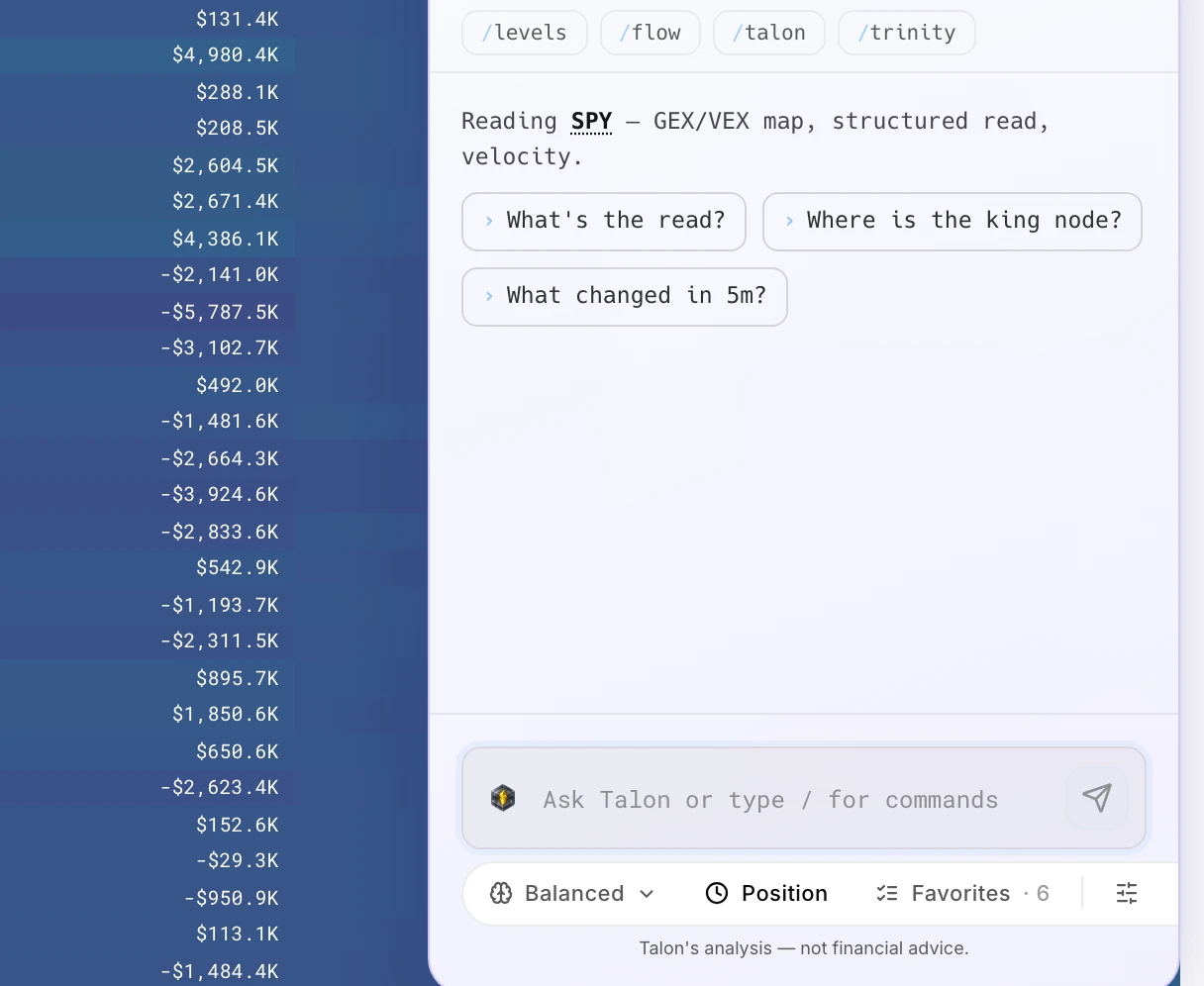
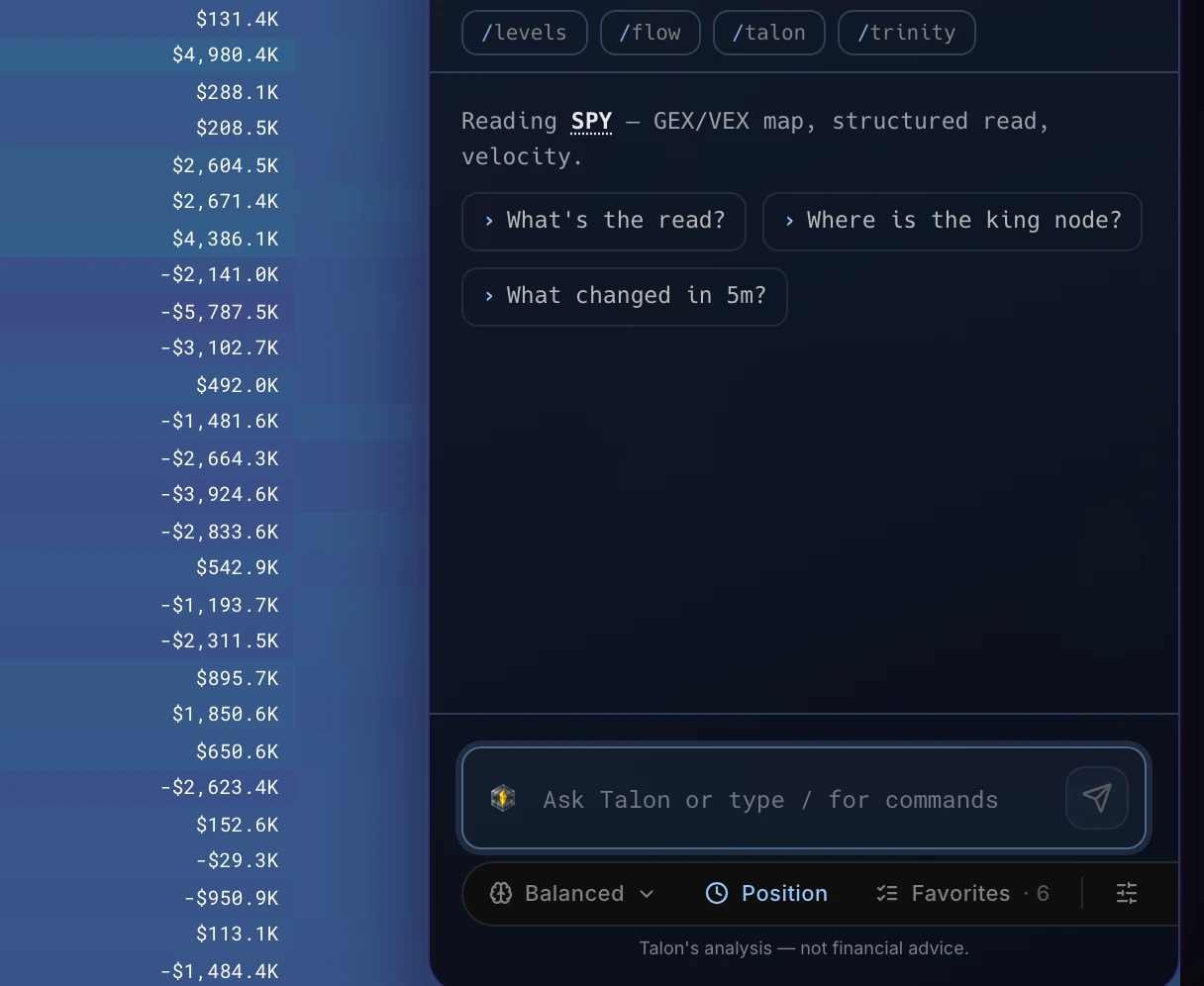
| Page | Talon starts from | Try |
|---|---|---|
| Heatseeker | The GEX/VEX map, a structured read, velocity | "What's the read?" · "What changed in 5m?" |
| Atlas | The chart's structure, levels and velocity | "Where is the king node?" · "What is on my chart?" |
| Trinity | SPXW, SPY and QQQ side by side | "Is the system aligned?" · "Which index is the laggard?" |
| Live feed · Scanner | Your active filters and what printed through them | "What am I filtering for?" · "Any repeat names?" |
| Contract lookup · a contract chart | One ticker's busiest contracts; the contract on screen | "Bought or sold?" · "Is open interest building?" |
| Compass | The panes on the board | "Which industries are bid?" |
| Company events | Earnings, dividends, splits, insider and Congress filings | "When is the next report?" |
| Tracker · Alerts | Saved positions; your alert rules and last fires | "Which are still open?" · "Why did this not fire?" |
| Academy | The course you are reading | "Summarize this lesson" |
On the Heatseeker and Trinity map pages Talon keeps its answers quick. Raw prints, the rotation scan, and chart patterns and indicators are not available there. Ask for those from Atlas or another page.
Tap a ticker, read the cards
Why: every ticker in an answer is a shortcut, and cards put a whole structure read on one screen.
Where: inside any Talon answer.
- Tap a ticker in an answer to open its menu. From there you can:
- ask Talon about it: Talon Read, Levels, Flow, Dark pool, Metrics, Earnings, or Mention in composer
- open it in Heatmap, Atlas or Trinity
- favorite it, or add it to your selected watchlist
- Read the card. A trade map, a scan report or a Trinity ladder shows as a card in place of text. Its numbers come from the same data as the answer. Scan cards line up the structural invalidation, the entry reference and the levels the structure points to. Each level shows its expiry and risk-to-reward. Each name shows its price and day change as of the moment the result loaded.
- Change the view. On scan results and trade maps, use Detail (Compact, Normal or Detailed) and Layout (Fit, Scrollable or Cards). These only change how the result looks; nothing is read again.
When a single name reports earnings within seven days either side of the data's date, Talon adds a line saying so.
History and feedback
Why: pick up yesterday's thread without starting over, and tell Skylit when an answer misses.
Where: History in the Talon toolbar; the thumbs under each answer.
- Open History to search, pin, rename or delete conversations.
- Tap Continue on a past thread to pick it up with its context. Old threads show how old they are. Continue one to keep the conversation, but ask again when you need fresh numbers.
- Rate any answer with a thumbs up or down. A thumbs-down offers reasons (Inaccurate, Wrong levels, Too slow, Not what I asked, Other) and goes straight to the people who tune Talon.
The full page (/talon)
Why: a bigger workspace, with a live chart of whatever you are discussing next to the conversation.
Where: TALON in the sidebar, or /talon. Pro plan.
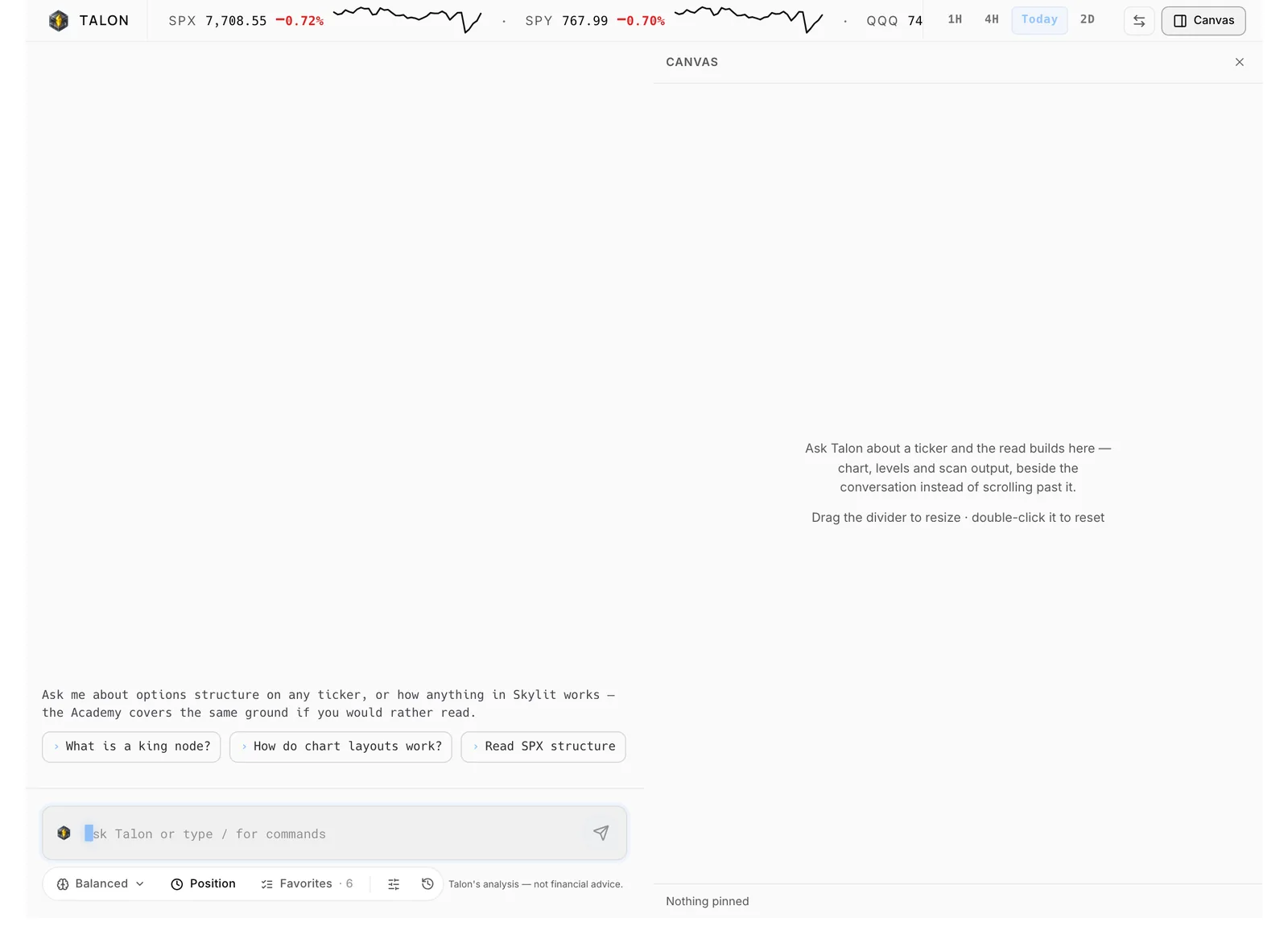
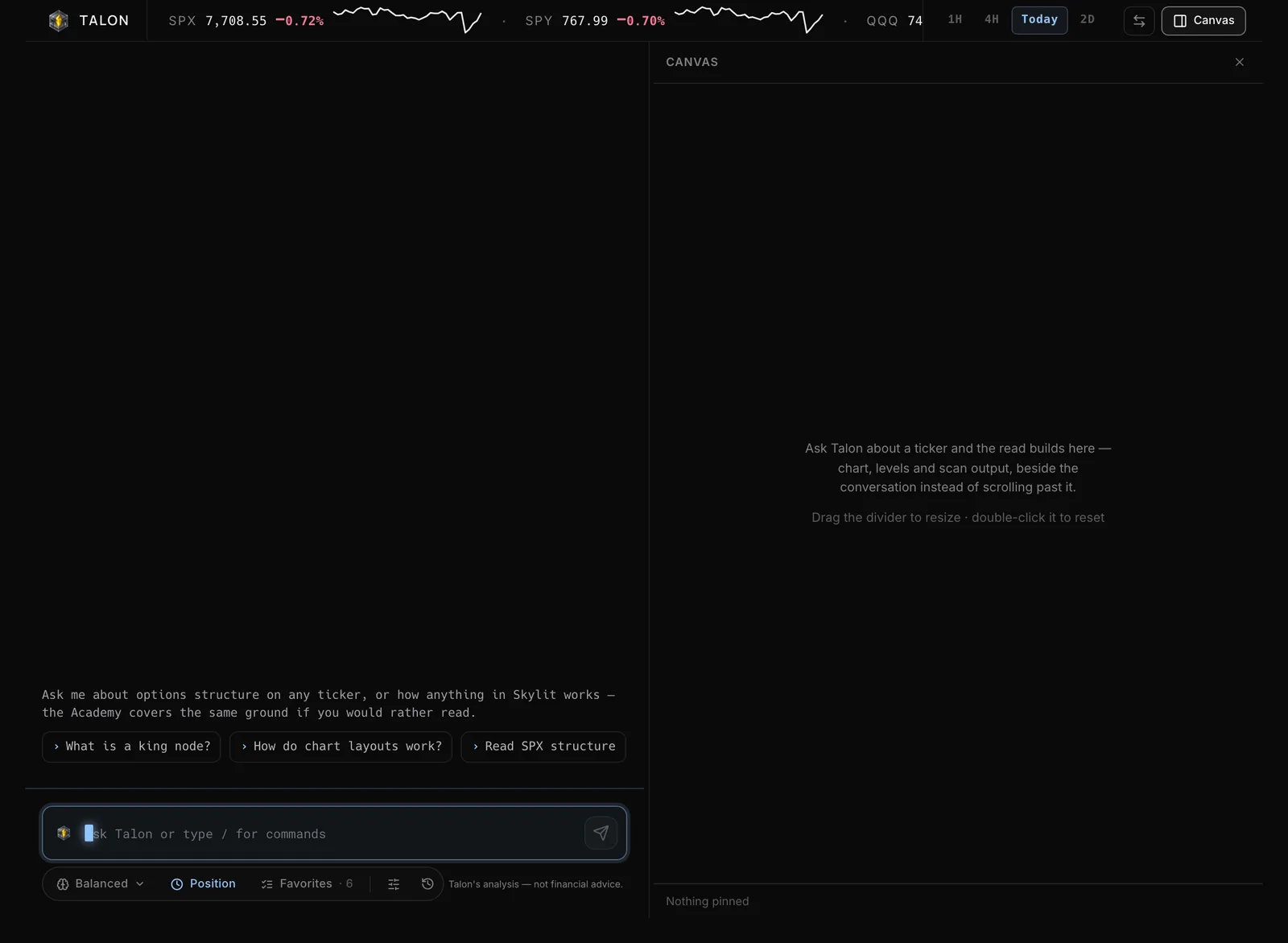
- Read the tape across the top: SPX, SPY, QQQ and CVIX (the VX-futures continuous index, not spot VIX). Switch the sparklines between 1H, 4H, Today and 2D.
- Ask about a ticker. On desktop, the canvas on the right shows a live chart of that symbol, plus the trade map, scan report, Trinity ladder or market overview. It holds up to six cards. A new ticker clears the board, and a seventh card pushes out the oldest. A question that names no ticker clears nothing.
- Use the chart. It follows your Atlas chart preferences but never changes them. It is always live, even in an old conversation; the caption then reads "live · from a conversation" and how long ago. Tap Open in Atlas to take the symbol to your charts. When an answer has levels that can be drawn accurately, a chip offers to mark them on the chart.
- Arrange the panes. The Canvas button in the header opens and closes the canvas, and the swap button beside it flips the panes. Drag the divider to resize; double-click it to reset. A narrow window shows one pane.
On a phone the full page has its own Back, History and New controls, and you can zoom the transcript with two fingers.
Common routines
These are habits for using the tool, not tested trading signals. Pick the one closest to how you trade.
Index scalps (0DTE SPX, SPY, QQQ)
Set Scalp. Open with /trinity to see whether the three indexes agree, then /levels SPXW. Before leaning on a level, ask "is that level still fresh, or tested today?". That answer is sometimes unavailable. The Academy teaches that levels weaken with each tap; treat that as a rule of thumb, not a tested signal. For flow at a wall (a big strike on the map), name the expiry and ask whether it was bought or sold.
Day trades
Set Day. From a Heatseeker or Atlas page, ask "what's the read?" then "where does this turn?". Follow /flow NVDA with "is that unusual for this name?" to see volume against its average and open interest, not just raw premium.
Swings
Set Swing. Run /watchlist or /talon sector semis to see which names have structure, then /talon NVDA for the trade map. Round it out with "how does the sector look behind this name?", "when do they report?" and, for the invalidation, "what would change your mind?".
Positions and single-name research
Set Position. Ask what the company does, who its peers are, what trades with it, whether insiders have been buying, and whether anyone in Congress traded it. Research answers are written in words and cite their sources. Take your numbers from the reads, not from research answers.
Use it with other Skylit tools
| Tool | How Talon helps |
|---|---|
| Heatseeker | Ask on the heatmap page: "What's the read?", "Where is the king node?", "What changed in 5m?". Check any level against the map itself. |
| Atlas | Talon reads the chart you have open: structure, levels and velocity. On the full page, mark its levels on the canvas chart or open the symbol in Atlas. |
| Trinity | /trinity gives the three-index ladder as a card. Ask "which index is the laggard?" |
| Flowseeker | /flow, strike flow and /darkpool answer from flow data. On the Live feed or Scanner, Talon reads your filters and results. |
| Academy | Product questions are answered from the Academy with sources. The Talon series starts with the Talon Prompt Guide course. |
Ask Talon
Talon answers questions about itself and the rest of Skylit from the published Academy and docs, and cites them. If the docs do not cover something, it says so instead of guessing.
| You want | Ask Talon |
|---|---|
| The command list | /help · "What commands do you have?" |
| How a control works | "What does the timeframe setting change?" · "When should I use Deep?" |
| A term | "What is a king node?" · "What is structural invalidation?" · "What is acceptance?" |
| Stacked kings | "What is a stacked king?" · "Stacked kings in my favorites" · "Big stacks near spot, closest first" |
| How to use a tool | "How do I use Atlas?" · "How do chart layouts work?" |
| Where the line is | "Why won't you tell me whether to sell?" (it explains why it won't) |
Good to know
- Check a level before you act on it. Talon takes its numbers from live Skylit data, but not every kind of answer is checked against that data yet. Compare any level with the Heatseeker map or the Atlas chart it came from.
- Talon describes; it does not decide. It will not give buy, hold, exit, size or pick answers. If an answer ever reads like a call, report it with a thumbs-down.
- An empty scan is a real answer. Scans are strict, so "nothing qualifies" means nothing met the bar. The risk-to-reward on a trade map is a reference from the structure, not a win rate.
- Market-wide scans tell you how much they read. Look at the Scanned line instead of assuming the scan saw every name.
- Flow totals are single-leg only. They will not match the all-legs figures on the contract chart. Read direction from the buy/sell split, never from how big the premium is.
- Dark pool, earnings and news have fixed limits. Dark pool covers the last five sessions. Earnings gives dates, not whether the report is before or after the bell. News covers about the last week, and each headline names its publisher.
- Research answers are words, not numbers to trade. They cite their sources. How to read Skylit data comes only from Skylit's own docs, never the open web.
- Timeframe changes the answer. Talon's king node comes from the expirations your timeframe selects, so it can differ from a map showing other expirations. Stacked kings are the exception: they read the whole map unless you ask for fewer expirations.
- A king can move between reads. When two nodes are nearly the same size, the biggest one can change from one minute to the next. Stacked kings flag these as contested, so ask again for fresh numbers before you rely on one.
- Long lists are read in part. A scan reads as many names as fit in its time and tells you how many it did not reach, grouped by reason. To read the rest, scan a shorter list or one sector.
- Limits. If you hit Talon's usage limit you will see "You've reached Talon's usage limit for now. Try again a little later." If Talon is off for your account you will see "Talon isn't available on your account. Contact support if you think this is a mistake."
What's new
September 2026
- Every card shows all four horizons. Trade map and scan cards now show all four horizons: Scalp, Day, Swing and Position. Switch one on a card or in the composer and every card on screen updates instantly. After the close, a Scalp read shows the next listed expiry instead of refusing. See Set the timeframe and effort.
- A bigger Hero card for one-ticker answers. When you ask about one ticker, Talon's setup card now opens larger, with a Confluence tab showing flow, positioning, dark pool prints and other evidence behind the trade. Other trades collapse into buttons that still show their prices. See Tap a ticker, read the cards.
- Canvas chart draws Talon's levels automatically. The chart on the /talon canvas now marks the levels Talon just described without you tapping anything, matches the same gamma or vanna reading behind the words, and widens its price range so every level stays in view. An optional flow view can be turned on beside it. See The full page (
/talon). - Tapping a card's ticker updates the chart, not Atlas. On /talon, tapping a scan card's ticker now changes the chart shown above the conversation instead of leaving Talon for Atlas. The card's menu also has a Chart on canvas option that does the same. See The full page (
/talon). - Slash and @ menus no longer hide behind the chart. On the full Talon page, the / command list and @ symbol list now always show in full, even when the chart sits above them in the conversation. See Slash commands.
- Trade map times now show Eastern time. The trade map's timestamp at the bottom now reads in Eastern time, matching the close, instead of raw UTC with no offset. See Tap a ticker, read the cards.
- Esc closes the timeframe menu. Pressing Esc while the timeframe menu is open now closes just the menu, like the effort, watchlist and appearance menus beside it. Press it again to close the panel. See Set the timeframe and effort.
- Slash-command list names match more easily. Typing a saved list's name in the / menu, like /watchlist Noah's, now finds it regardless of quote style, spacing or capitalization. See Slash commands.
- Queue a question while Talon answers. You can send your next question while Talon is still answering. Up to three wait in a queue, so you never wait to type. See Choose how answers look.
- Steadier Talon on phones. On a phone, the composer and slash menu stay above the keyboard, and the conversation no longer jumps while you scroll. See How to use it.
- Detail and Layout on scan results. Scan results and trade maps have separate Detail and Layout controls, so you can make a result denser or roomier without a new read. See Tap a ticker, read the cards.
- Clearer scan cards. Scan cards show the invalidation, entry reference and the levels the structure points to on one line, with each level's expiry and risk-to-reward, so the structure reads at a glance. See Tap a ticker, read the cards.
- Market breadth with /breadth. /breadth shows how many S&P 500 and Nasdaq 100 names are advancing versus declining, so you can see whether a move is broad or narrow. See Slash commands.
- Live chart on the full page. The /talon canvas shows a live chart of the symbol you are discussing, in your Atlas chart style, so price sits beside the answer. See The full page (
/talon). - Insider and Congress filings. You can ask whether insiders have traded a stock, or whether members of Congress traded it, including on Company events. See Ask about the page you are on.
Every Talon update: skylit.ai/changelog/talon.
Glossary
| Term | Meaning |
|---|---|
| 0DTE | Options that expire today (zero days to expiry). |
| Aegis | The Companion panel on the right of the app. Talon is one of its tabs. |
| Canvas | The right pane of the full page, where the live chart and cards land. |
| Card | A trade map, scan report or Trinity ladder shown as a block instead of text. Its numbers come from the same data as the answer. |
| Composer | The message box where you type to Talon, with the timeframe, effort and watchlist controls under it. |
| Concise | An answer format of short field blocks instead of prose. Switch it with /concise. |
| Continue | Pick up a past conversation from History with its context. |
| Deep / Balanced / Fast | Effort levels: how much reasoning Talon spends on an answer. Balanced is the default. |
| Scan report | The card for a sector, theme, market or watchlist scan. |
| Fresh / tested / delivered / spent | Where a level sits in its life, as the Academy teaches it: levels weaken with each tap (a Skylit rule of thumb, not a tested signal). |
| Contested king | A king that is less than 10% bigger than the next node, so it can switch to that node between reads. |
| King node | The dominant node (a strike with a large exposure) on the board. Talon reads the expirations your timeframe selects, so its King can differ from the one on a map showing other expirations. |
| Scanned line | The line in a scan result saying how many names were actually read. |
| Stacked king | A name whose biggest gamma node and biggest vanna node sit on the same strike and expiry. Positive, negative or split describes the two signs. |
| Structural invalidation | The price that would prove the structural idea wrong, used as the reference for risk-to-reward. It is not a stop order. |
| Talon Read | The /talon command: a structure read on one ticker or a scan across a scope. |
| Timeframe | Scalp, Day, Swing or Position: which expirations Talon reads structure from. |
| Trade map | One ticker's structure laid out with an entry reference, the levels the structure points to, the invalidation and risk-to-reward. A reference, not a recommendation. |
| Trinity | SPXW, SPY and QQQ read together. |
| Wall | A big strike on the map. Traders watch walls as places where price may stall. |
Last updated