 Nexus
Nexus field guide
Practice options trades in your own $100,000 paper wallet, see exactly how each trade went, and compare your record with other traders.
Why it matters
Most traders don't know their own numbers. Nexus shows you how you actually trade, and how that compares with everyone else, without risking real money.
It does four jobs for you:
- A paper wallet for options. You get one practice wallet that starts at $100,000. Open paper positions in calls and puts from a live options chain, then add to, trim or close them. The wallet is yours for good and carries over from season to season. A new season starts new Season standings, never a new balance.
- A record of every trade. Each trade is kept as a card with its entries, trims, exit, profit or loss (P&L) and how far it ran for or against you.
- A community board. Your rank says whether your trades made money for the risk they took, after fees, and how sure that result is. The leaderboard has a Rank board and a Season board for the current season (an Arc), plus a board of Discord servers (Guilds). You can follow traders and see their trades in your feed and on your Atlas chart.
- An ideas feed. Post a short bullish or bearish view on a ticker. Nexus tracks the price from the moment you post it.
The first time you open Nexus, you accept a short disclaimer. Nexus is an educational beta for reviewing your own trading. It is not financial advice, and it is not meant for copying anyone's positions. Keep that in mind when you use the social features.
Where to find it
Open the left sidebar and scroll to NEXUS. It is there for every signed-in member.
| You want to | Go to |
|---|---|
| Place a paper options trade | Nexus > New Trade (or New Trade at the top of Trades) |
| Add to, trim or close an open trade | Nexus > Trades > My Trades, then open the card |
| See your wallet balance and return | Nexus > My Profile, wallet panel |
| See rankings, Arcs and guilds | Nexus > Leaderboard |
| Read the full rank rules | Nexus Ranks (/nexus/ranks) |
| Share your profile | Type /nexus/u/<your handle> after the Skylit address and share that link |
| Post a trade idea | Nexus > Ideas |
| Post trades to Discord | Nexus > Settings > Discord and Routing |
| See your positions on a chart | Atlas > Trade Deck (on plans that include Atlas) |
Read it in 30 seconds
- Wallet first. My Profile shows your paper equity, cash, realized P&L and return, and how many practice trades are open.
- Open trades next. Trades > My Trades > Active. Each card shows live P&L, the best the trade has been (Apex Return) and the worst (Max Drawdown).
- Then your record. The Closed tab on My Profile lists finished trades, and the stats radar sums them up: win rate, average return, worst loss.
- Then your rank. Your first 10 counted positions are placement. After that you start at Theta, and every rank above it, up to Oracle, means profitable after fees. See Your rank.
How to use it
Place a paper trade: New Trade
Why it matters: you can try a trade idea with realistic fills and see what it does to your wallet before you commit anything.
Where: Nexus > New Trade. It opens on the last symbol you charted, or TSLA if there isn't one. If you come from a futures chart (NQ, ES), it switches to the matching index ETF, because futures have no options chain here.
-
Check the ticker at the top. Type a new one to switch. Next to the price is the quote status: Live (streaming), Snapshot (the last quote is too old to count as live), Closed or Waiting.
-
Pick an expiration from the row of expiration pills.
-
Choose a contract. Contract preference picks a starting contract for you:
- ~30Δ: the contract with a delta closest to 0.30.
- $2-4: a contract whose ask is between $2 and $4.
- Liquid: the one with the most open interest plus volume.
Tap any strike in the options chain to pick a different one.
-
Set the quantity. The order panel shows the estimated cost (price x quantity x 100). The Simulated Buying Power panel shows Available Cash, Starting Bankroll, Realized P&L and After This Order, so you see what the trade does to your wallet first.
-
On a phone, add optional Notes (the box reads "Trade thesis..."): a note that stays with the trade.
-
Place the order with Execute Trade (desktop) or Log as Simulated (phone).
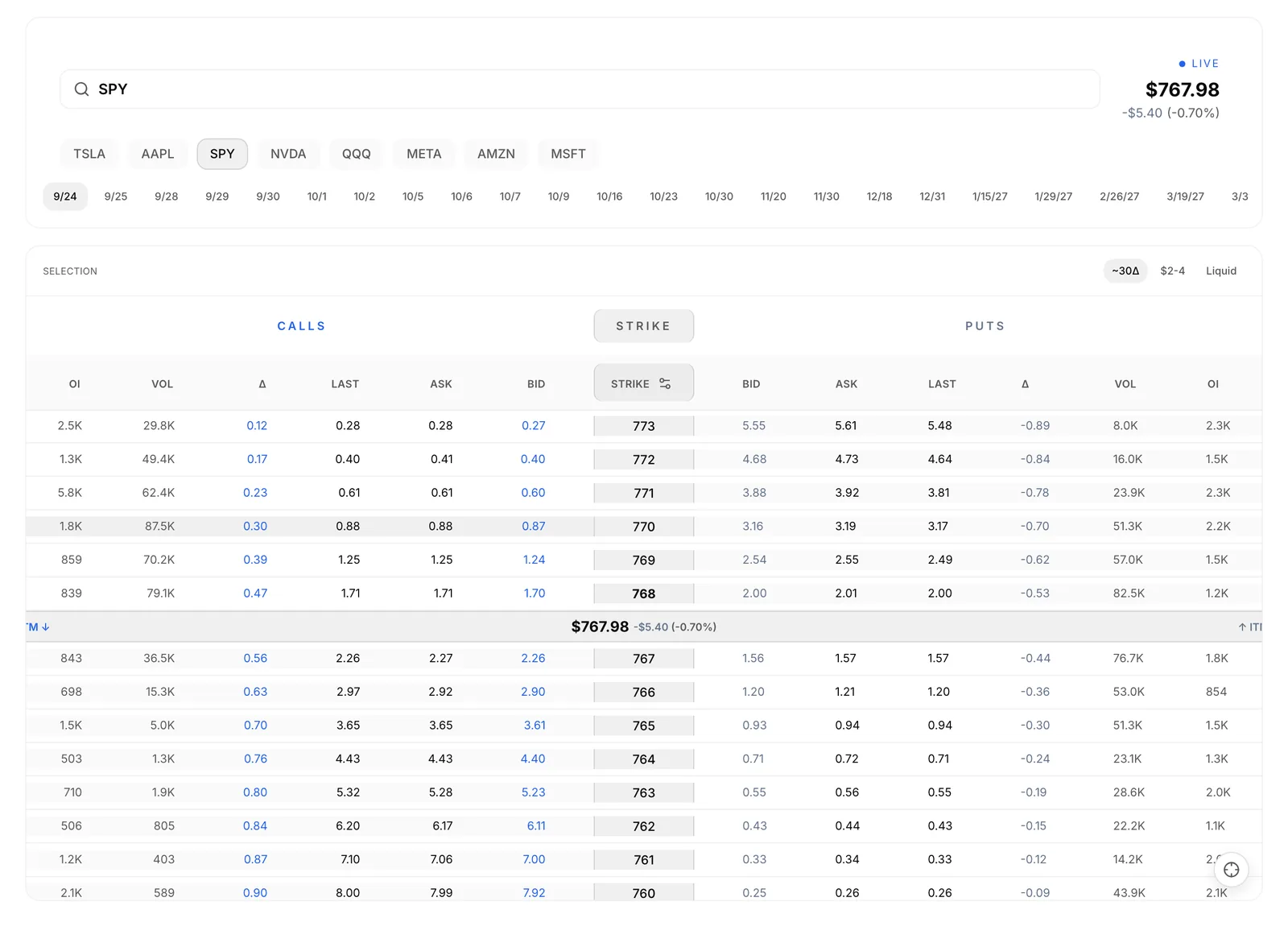
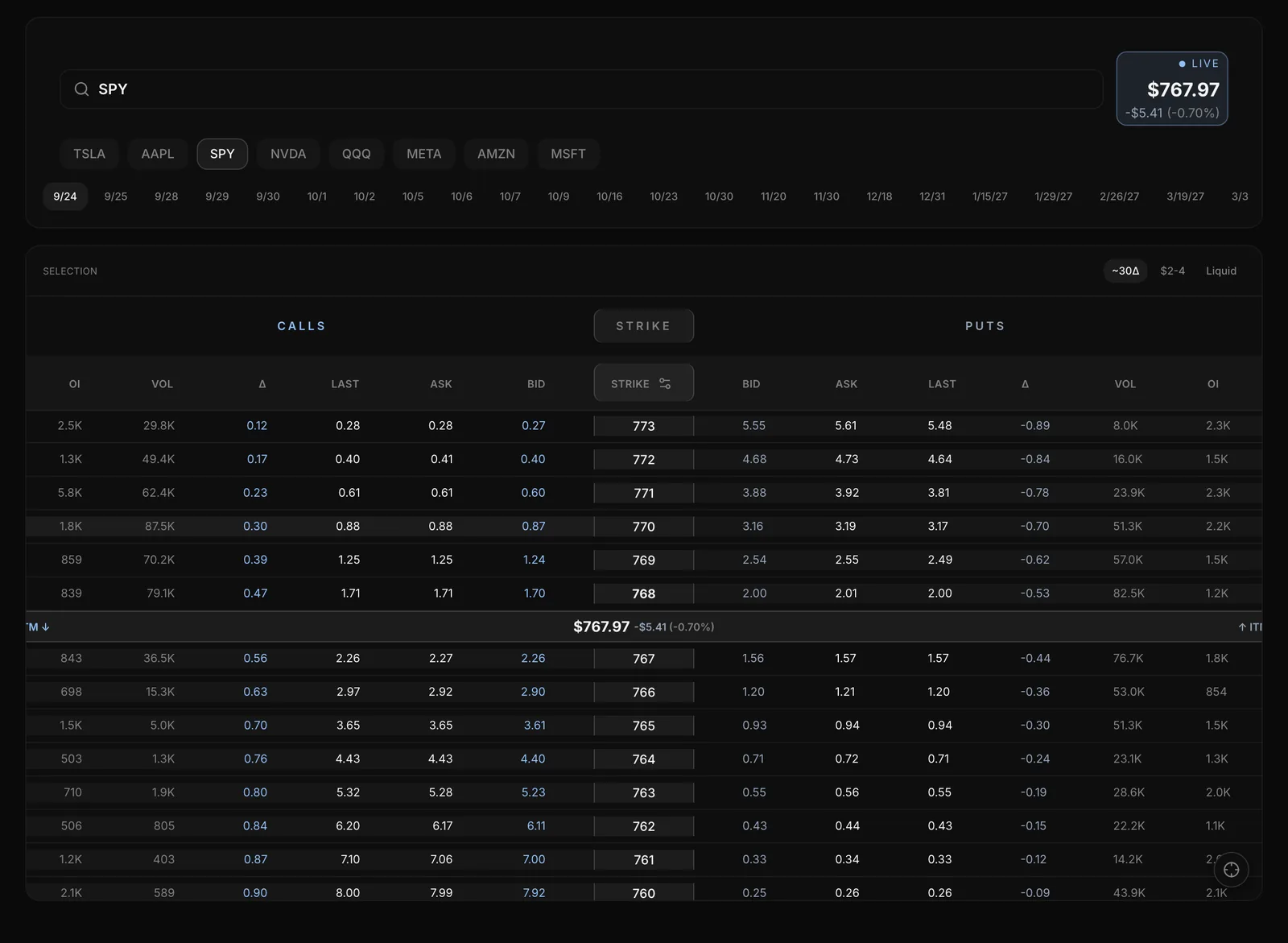
Reading the chain. Calls sit on the left, strikes in the middle and puts on the right, always side by side. Use the column picker to choose the columns (Bid, Ask, Last, Mid, Delta, Gamma, Theta, Vega, IV, Volume, Open Int). It also sets the Strike Order: High → Low or Low → High.
How your order fills. Orders are market orders. A buy fills at the ask and a sale at the bid, like a real market order.
Orders go through only while that contract is trading. Outside those hours the button says why and when the market reopens. Expired contracts can't be traded.
Manage your trades: Trades
Why it matters: the card shows you how a trade really played out, including the gain you left behind, so you can review exits as well as entries.
Where: Nexus > Trades. The tabs are All, Following, My Trades and Bookmarked.
To add to, trim or close one of your open trades:
- Go to My Trades and set the filter to Active.
- Open the trade card.
- Tap Add, Trim or Close.
- Set the quantity in the panel and confirm. Adds fill at the ask; trims and closes fill at the bid.
Filters. Choose Verified Only or Simulated Only, Active or Closed, and sort by Newest, Oldest or Biggest Move.
Reading a trade card. Each card shows the contract, a Simulated or Verified badge, the trader's rank and P&L. Open it to see:
- the timeline: Opened Position, Averaged Down, Partial Exit and the exit, each with its price and time;
- live Bid / Mark / Ask and greeks for an open trade;
- the excursion figures. Open trades show Realized P/L, Apex Return, Max Drawdown and Trade Duration. Closed trades show Realized P/L, Absolute Apex, Missed Upside, Apex Giveback, Max Drawdown and Trade Duration;
- reactions, comments and a bookmark.
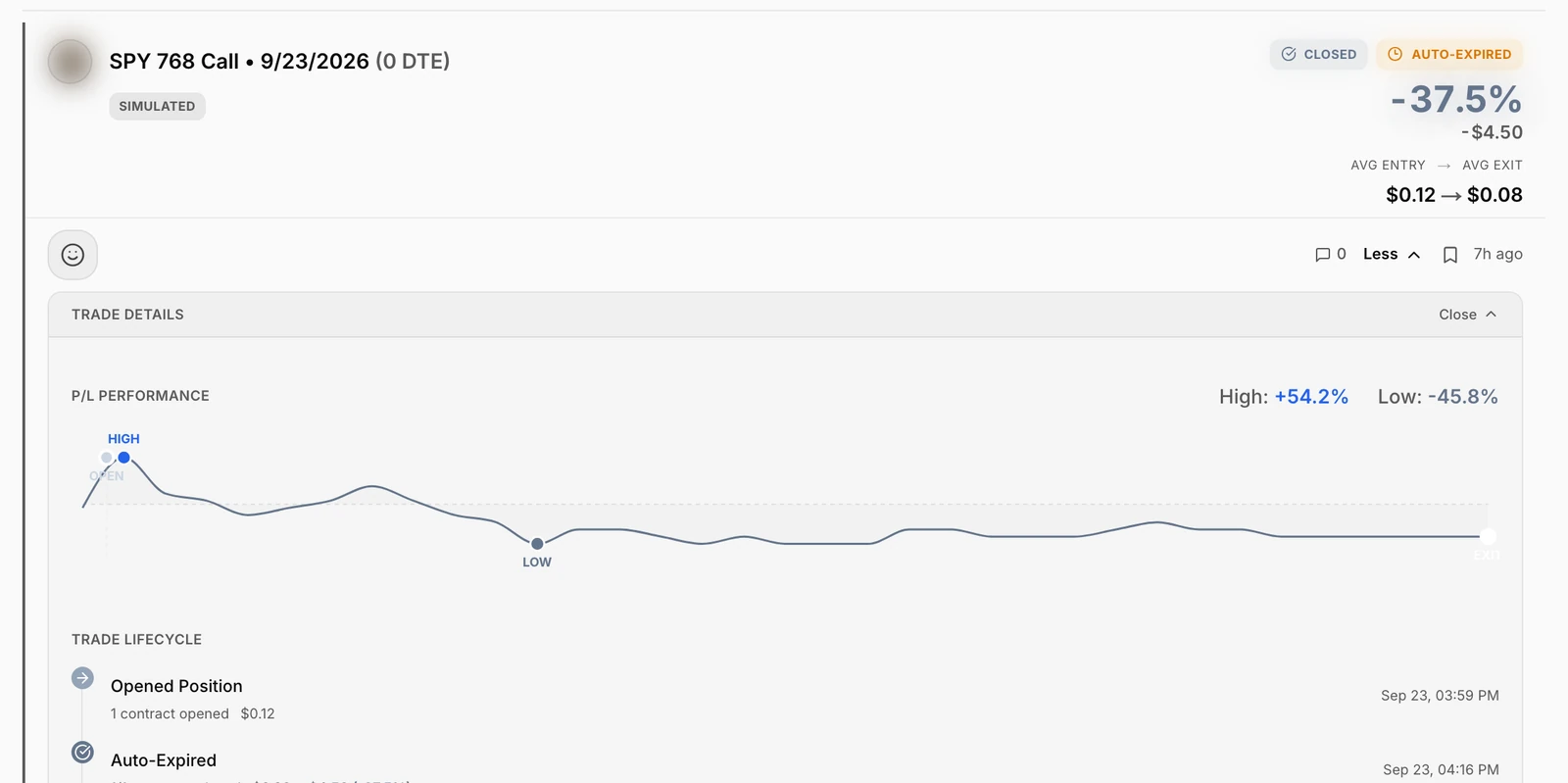
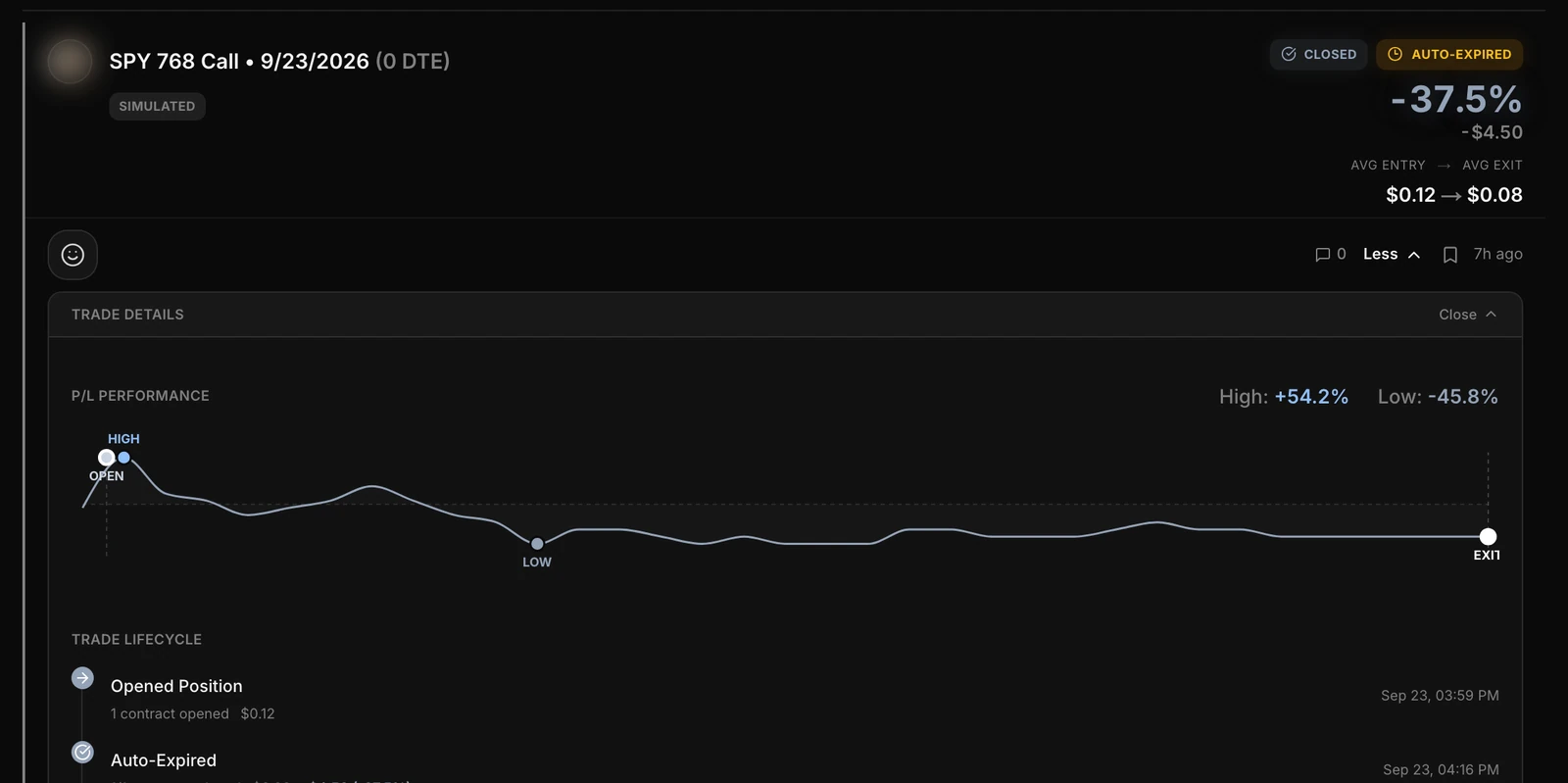
Contracts still open at expiration close by themselves and show as Auto-Expired.
Your profile and wallet: My Profile
Why it matters: one page tells you where your practice account stands and what kind of trader your record says you are.
Where: Nexus > My Profile.
- Read the wallet panel: Season Equity (cash plus the estimated value of open positions), Cash Balance, Realized P&L, Season Return, the starting amount and Resets This Season.
- Check the stats radar: Total Trades, Risk Reward, Worst Loss, Win Rate, Avg Return. A dash means not measured yet, not zero. Worst Loss is your single worst closing return, not an account drawdown.
- Use the tabs: Active, Closed, and Coach (on your own profile only).
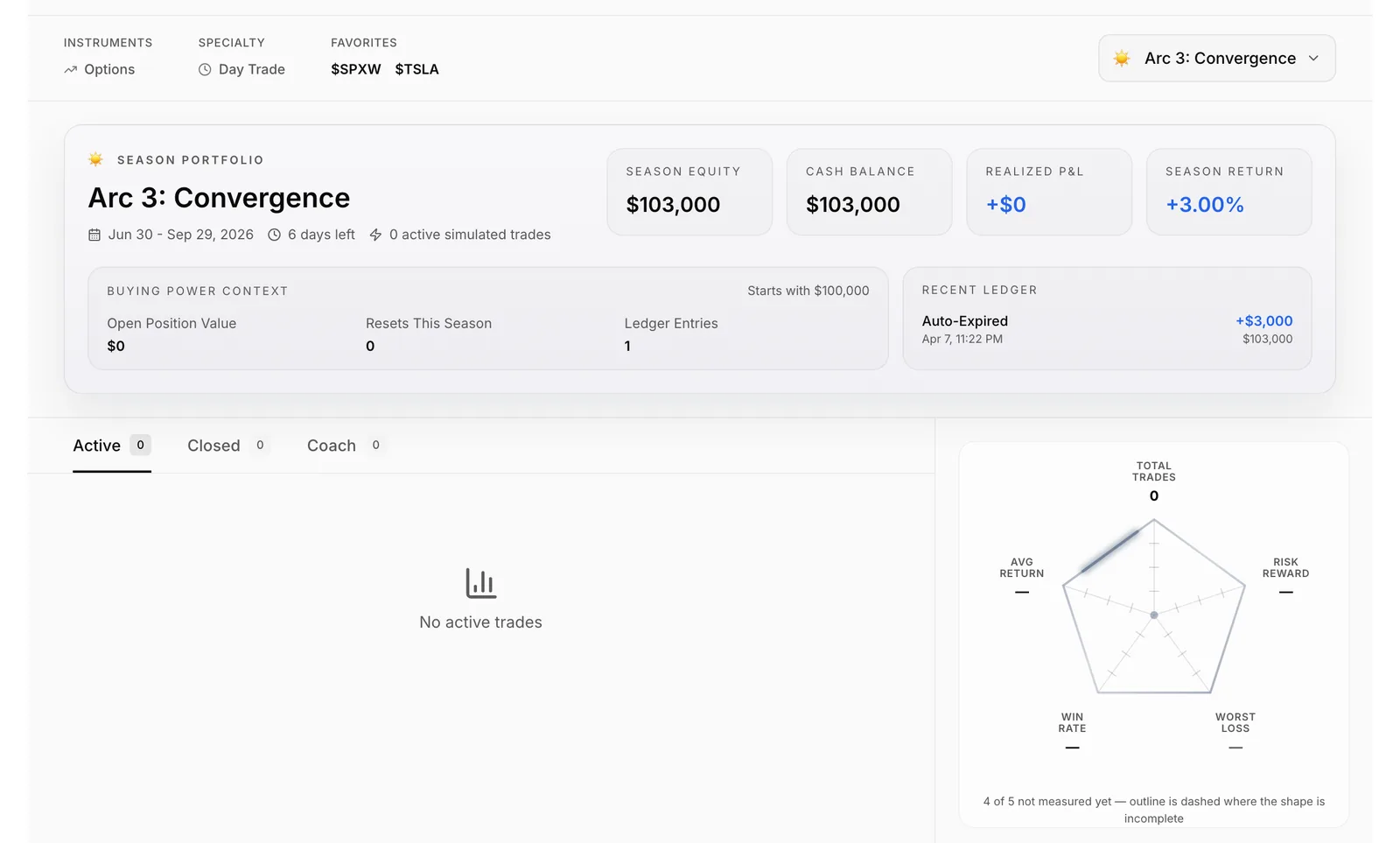
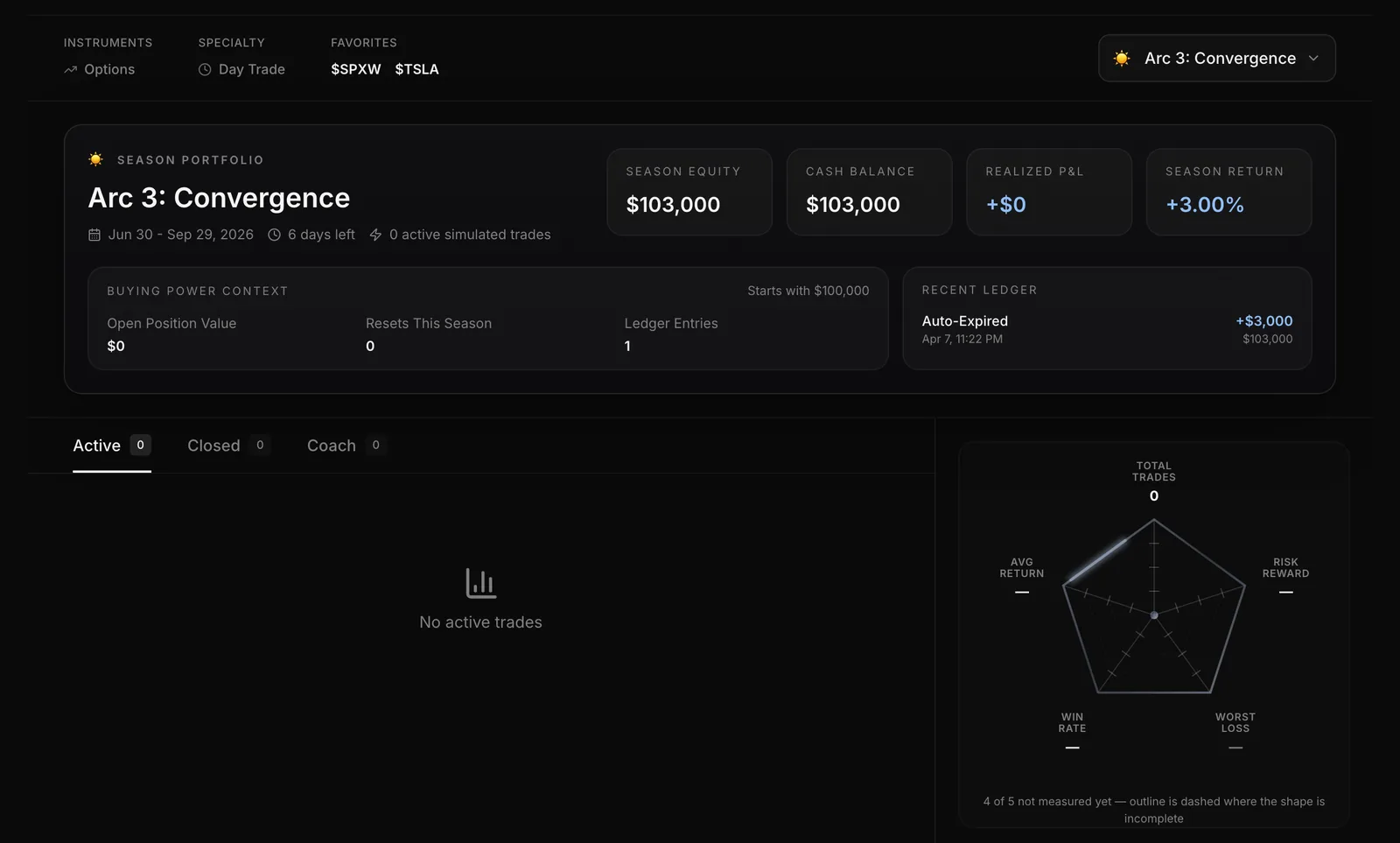
The top of the profile shows your rank (crest, rank and division), streak, followers and your primary guild.
The Coach tab. Coach reviews your own closed trades and points out habits, such as how long you hold, which expirations you favour and how far from the price you pick strikes.
- Until you have enough closed trades, it shows a progress bar: "You're at X / Y closed trades".
- After that it shows insight cards, refreshed overnight. Each has a label (Info, Opportunity, Warning or Critical) and a Save button.
Your username. If your account has no username, Nexus asks you to choose one: 3-20 letters, digits or underscores. Other people can't search for or follow an account with no handle.
Sharing your profile. Your profile has its own address, /nexus/u/<handle>, that you can paste anywhere. The Share icon in the profile header doesn't do anything yet, so copy the address by hand.
Your rank
Why it matters: your rank is a statement about evidence: whether your trades made money for what they risked, after fees, and how likely it is that it wasn't luck. Every rank above Theta means profitable after fees. Followers, streaks and posting don't move it, and volume never ranks you: more positions only make your result more certain.
Where: the top of My Profile. The full rules, with every standard, are on Nexus Ranks (/nexus/ranks).
- Positions, not orders. Trades on the same underlying, in the same direction, open at the same time count as one position.
- Each position is measured in R: its profit or loss, net of a standard fee model, divided by the capital it put at risk, fixed when it opened. That makes an options trade, a stock trade and a futures trade comparable.
- Edge is your average R per position, after fees. +0.20R means that for every $100 you risk, you keep about $20 on average.
- Proven Edge is the lowest your average R is likely to be, given how many positions you have and how much they vary. Fewer positions or more erratic results mean a lower Proven Edge.
- Ranks, from the start: Placement, then Theta, Delta, Gamma, Vega, Omega and Oracle. Delta means not losing money: an average of at least 0R and a net dollar return of at least zero. Gamma means profitable with 80% confidence, and Vega, Omega and Oracle ask for more certainty and a bigger edge. Each rank also needs a minimum number of positions and of trading days. Oracle is a small number of seats for the strongest records.
- Divisions and Edge Points. Each rank has four divisions, IV to I. Edge Points (EP) show how far you are through the current division, from 0 to 100, and change after every close.
- Verified seal. Your rank gets a Verified seal when your broker-verified results alone meet its standard.
Rankings: Leaderboard
Why it matters: it shows how your record stacks up, and lets you study how other traders manage their trades.
Where: Nexus > Leaderboard.
- Pick a board: Rank, Season or Guilds.
- Rank lists traders at Delta and above (not losing money after fees), numbered, in rank order: rank, then division, then Edge Points. Below them, Not ranked yet lists Theta and placement traders without a number. Open it to browse everyone else.
- Season ranks this Arc's results only: traders with at least 20 positions and a profitable season after fees, ordered by Proven Edge at 90% confidence. Everyone else who traded this season is listed after the standings as placing, without a number.
- Guilds ranks Discord servers by the average Proven Edge of their members at Delta and above. A guild needs at least 3 such members to get a place.
- Use Search traders to find anyone by handle.
Following a trader. Hover a trader's name for a quick card, or click the row to open their profile card (View Full Profile opens the whole page). Then click Follow (click again to unfollow). Their trades show up under Trades > Following, and their ideas under Ideas > Following.
Arcs are seasons, one calendar quarter each (Eastern time): Arc 1 Genesis (Jan-Mar), Arc 2 Ascension (Apr-Jun), Arc 3 Convergence (Jul-Sep), Arc 4 Apex (Oct-Dec). When an Arc ends, its final standings are saved as the season record. Your wallet carries straight on, and so does your rank: it always reads your last 180 days.
Share a view: Ideas
Why it matters: writing your view down before the move keeps you honest, and the feed shows how each idea has played out since.
Where: Nexus > Ideas.
- Pick a feed: Latest, Trending or Following.
- Filter by Bullish or Bearish, and sort by Newest, Oldest or Biggest Move. Search covers ideas, tickers and users.
- To post, click Share Idea at the top of the page. Enter a ticker, pick bullish or bearish, and write your thesis. You can use
@mentionsand$cashtags, and add images and links.
Each idea shows the price when posted next to the current price. Ideas are separate from trades: they don't count toward your win rate or P&L.
Post to Discord: Settings
Why it matters: your trades and ideas can post to your community's Discord channels without copy and paste.
Where: Nexus > Settings. The tabs are Discord, Routing, Notifications and Integrations.
- On Discord, check your servers and their setup status, and set your primary guild: the server your trades go to when you post from Skylit. Mute All Discord Routing turns all posting off at once. If Nexus confirms you own or run a server, you can also pick its guild roster here (up to five members for the season).
- On Routing, add rules that decide which trades and ideas post to which channels. Rules can match on content type, call/put or bullish/bearish, options or stocks, simulated or verified, tickers, P&L, rank and time window.
- Place a trade. If no channel received it, Nexus tells you.
Notifications and Integrations say "coming soon". Broker, SMS and social connections are not available yet.
Use it with other Skylit tools
| Tool | How it works with Nexus |
|---|---|
| Atlas | Turn on Trade Deck to see your Nexus positions pinned to the chart where you opened them. You can also trade your own positions from there with one tap. Its settings switch between your positions (Mine), the traders you follow (Following), or Both. Hover a position to see its adds and trims. |
| Heatseeker | Plan a trade off Heatseeker levels, then log it in Nexus. Your trade cards and profile stats show how those trades went for you. |
| Live Stages | Hover a username in a Stage to see that person's Nexus card. |
| Discord | Routing rules post your trades and ideas to the channels you choose. |
Ask Talon
Talon can't read your Nexus data yet: not your trades, wallet or leaderboard position. It does know which Nexus page you are on. It can help with general "how do I" questions, but its Nexus answers are still thin. For your own numbers, use My Profile and your trade cards.
Good to know
- Every trade is a paper trade. Connecting a broker isn't available yet, so the Verified badge, filter and rank seal stay empty for now.
- "Season Equity" and "Season Return" cover your whole wallet history, not just the current Arc. Read them as all-time numbers.
- The profile Share icon doesn't work yet. Share your
/nexus/u/<handle>address instead. - Leave fills on the market price. When you add, trim or close, tapping Bid, Mark or Ask switches to a manual price. Orders at a manual price are turned down.
- Expired options don't show under Closed. On Trades, the Closed filter leaves out contracts that expired while open (the Auto-Expired ones). Set the status filter to All Statuses to see them. The Closed tab on My Profile does include them.
- Your first 10 counted positions are placement. Scratches (results between -0.10R and +0.10R) don't count toward it.
- Rank reads your last 180 days. Private trades count, copied trades don't, and closed trades can't be deleted.
- A dash is not a zero. On your profile, a dash means nothing has been measured yet.
- Small samples are hints. Stats from a handful of trades say little. The same goes for other traders: check how many trades they have closed before you read much into a high win rate.
- Nexus records how you traded. It is not a forecast, a signal or a recommendation, and it is not for copying other traders.
What's new
November 2026
- Forum and Configs sharing open to all members. Every signed-in member can now read and post in the forum, use Ideas, and share, browse and copy Configs. The Forum appears in the nav and as a tab, and Atlas shows the Configs rows. Chat stays off.
- Search any ticker on Ideas. At the top of the Ideas list, Search any ticker finds any ticker and opens it, showing how many ideas it has. Tickers no longer appear with a doubled "$$" prefix.
- Talon Undo restores your previous tickers. After Talon changes your charts, Undo now puts back the tickers you had before, not just the layout. See Ask Talon.
October 2026
- Follow button label is centred. On a trader's profile, the full-width Follow button now centres its label, matching the "See trades on chart" button under it.
- Your Chart shows every tier's crest. On Your Chart, a tier you skipped on the way up, such as Delta straight to Vega, now shows its crest on its lane instead of a blank spot. See Your rank.
- Journal stat renamed to Against you. In the Journal's Behaviour panel, the stat called "Heat taken" now reads "Against you", and the profile tooltip that points to it matches. The numbers are the same.
- Protégé members can book 1:1s. Protégé members can now book 1:1 sessions, browse hosts and reschedule, and they don't need to finish the Academy first.
- Studio links to older trades open on a clear chart. In Studio, "On the chart" for a trade from before 2022 now opens Atlas on about a month of daily bars around the trade, instead of a sliver narrower than one bar.
- Stock trades read as shares. Stock trades on the Trades page, Journal, profile and forum embeds now read like "AAPL Shares · Short · 2 shares", with no strike or expiry. A short's fills list the opening trade first. The stock ticket's market note now matches the side you pick. See Manage your trades: Trades.
- Add a journal note from the futures Trade Desk. In the futures Trade Desk, open positions and closed trades in History have a note icon. Tap it to write a note under the row. It saves as you type, and a dot shows the trade has a note. It's the same private note as in the Journal. See Manage your trades: Trades.
- Simulated replaces Paper in Nexus. Labels, filters, counts, share pages, clips and recap cards now say Simulated instead of Paper, for example "6 simulated trades" and "Futures (simulated)". Existing share links read Simulated too.
- Option cards show the last mark and its time. After the close, an open option card shows its last price and when it was marked, such as "Current $16.83 · Market closed · last mark 3:59 PM ET". The "Market reopens" time now reads 9:30 AM ET in every time zone. See Manage your trades: Trades.
- Long names wrap instead of cutting off. Long trader handles and symbols on Nexus pages now wrap onto a second line instead of ending in "...", so similar names can be told apart. Empty values now read "n/a" in place of a dash.
- Easier taps and clearer keyboard focus. Buttons and links across Nexus pages, including the quick order buttons, are easier to tap on touch screens. Selects, inputs, checkboxes and option-chain rows now show a focus ring when you move through them with the keyboard.
- Seasonal Halloween look, with an Off switch. In October, Nexus shows a faint web, spider and bats around the page. To turn it off, go to Settings > Appearance > Seasonal look > Off. The choice is kept on that device.
Every Nexus update: skylit.ai/changelog/nexus.
Glossary
Terms as they appear in Nexus. Where the app has its own wording, it is quoted.
| Term | Meaning |
|---|---|
| Absolute Apex | The best return the contract reached, during the trade or after you exited. |
| Apex Giveback | How much of the in-trade peak you gave back before closing. |
| Apex Return | The best return an open trade has reached so far. |
| Arc | A Nexus season, one calendar quarter long: Genesis, Ascension, Convergence, Apex. Each Arc has its own Season standings; your wallet and rank carry on. |
| Auto-Expired | A contract still open at expiration, closed automatically. |
| Guild | A Discord server as a team on the leaderboard. Its row reflects the season roster its owner picks (up to five members), or its members when it has no roster. Your primary guild, set in Settings > Discord, is where your trades are posted. |
| Max Drawdown (trade card) | The worst point a single trade reached. |
| Missed Upside | The gap between the best return the contract reached, during or after the trade, and where you closed. |
| Division | IV to I within a rank; I is the highest. Oracle has seats instead. |
| Edge Points (EP) | How far you are through your current division, from 0 to 100. |
| Position | Trades on the same underlying, in the same direction, open at the same time, counted as one result. |
| Proven Edge | The lowest your average R per position is likely to be, at a stated confidence, given how many positions you have. |
| R | A position's profit or loss, net of fees, divided by the capital it put at risk, fixed when it opened. |
| Rank | Placement, then Theta, Delta, Gamma, Vega, Omega and Oracle. Every rank above Theta means profitable after fees, over your last 180 days. Full rules: /nexus/ranks. |
| Simulated | A paper trade in your Nexus wallet. |
| Snapshot | The ticket's quote is not streaming, or is too old to count as live. |
| Verified | A trade confirmed through a connected broker. Not available yet (see Good to know). |
| Wallet | Your practice cash account, starting at $100,000. There is one per member and it is permanent: seasons never reset it. |
| Worst Loss | Your single worst closing return on the profile radar. Not an account drawdown. |
Last updated